
Managing client payments is a crucial aspect of construction projects, and efficient payment processes can greatly enhance project timelines and overall client satisfaction. Bauwise, a leading provider of construction cost management software, has introduced an innovative client payment application —Applications for Payment (AFP) — feature to simplify and streamline payment workflows. In this blog post, we will explore the functionality and benefits of Bauwise’s client payment application, empowering construction teams to efficiently handle payment processes and improve project financial management.
The client payment application feature is designed to be seamlessly integrated within the Bauwise platform. To initiate the payment application process with the client, the project must have a subproject that includes the client’s budget and contract(s). Let’s explore the steps involved in utilizing this feature effectively.
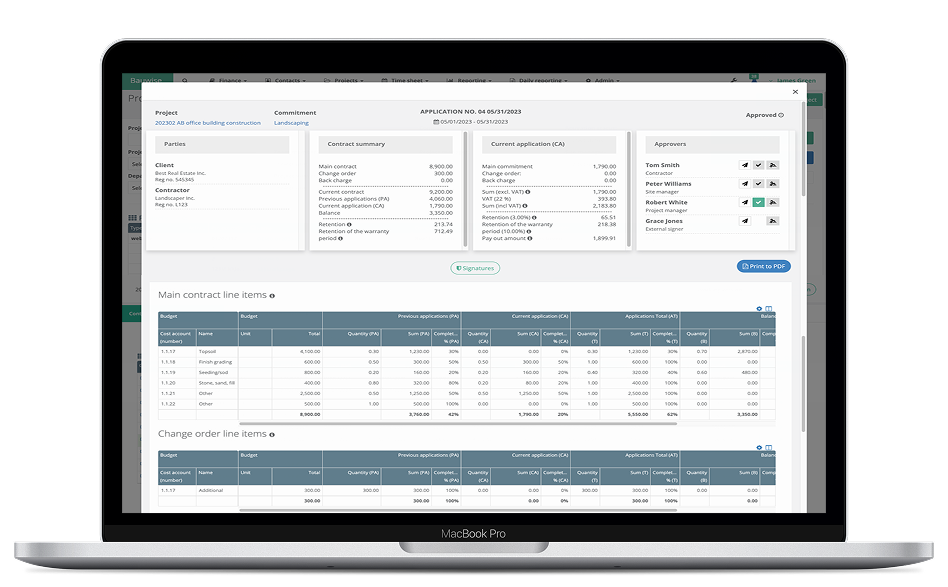
Table of Contents
How to use Bauwise Applications for Payment
Step 1: Creating a Client Budget
To get started, a new subproject must be created specifically for the client’s budget. Within the subproject, set the type as a client budget. Once this is done, a client contract can be created and associated with the budget. In the contract view, you have the flexibility to add contract line items either by copying and pasting information from Excel or manually adding lines directly into Bauwise. After entering all the necessary contract information, change the contract status to “Confirmed.”
Step 2: Adding Contract Parties
Before proceeding with payment applications, it is essential to add the relevant contract parties. In the contract view, navigate to the Access panel and include the project manager, client, and client supervisor as contract parties. Currently, each contract must have these three parties, but there are plans to provide the option to add or remove parties in the future.
Step 3: Creating Payment Applications
With the contract parties set, you can now create payment applications. Access the Payment Application sheet and input the application sums or percentages as required. The project manager has the authority to enter these details and subsequently approve the payment application. Once approved, the payment application moves on to the next party in the approval process, following a specific order: project manager → client supervisor → client.
Step 4: Approval and Editing
When a payment application is sent to one or more parties for approval, they have several possible actions to take. They can confirm the payment application, which will allow it to move forward in the approval process. Alternatively, they can decline the application, which sends it back to the project manager for review. If necessary, parties also have the option to edit the payment application, which clears all previous approvals and allows for modifications. After editing, the party can re-approve the application, signifying the completion of their part, and the payment application will proceed to the next party for approval.
Step 5: Signing Process
After all parties have approved the payment application, the signing process begins. The signing process is parallel, meaning the order of signatures is not important. All parties involved will receive a notification email simultaneously. Each party can add their signature to the payment application, ensuring a complete and accurate record of approvals.
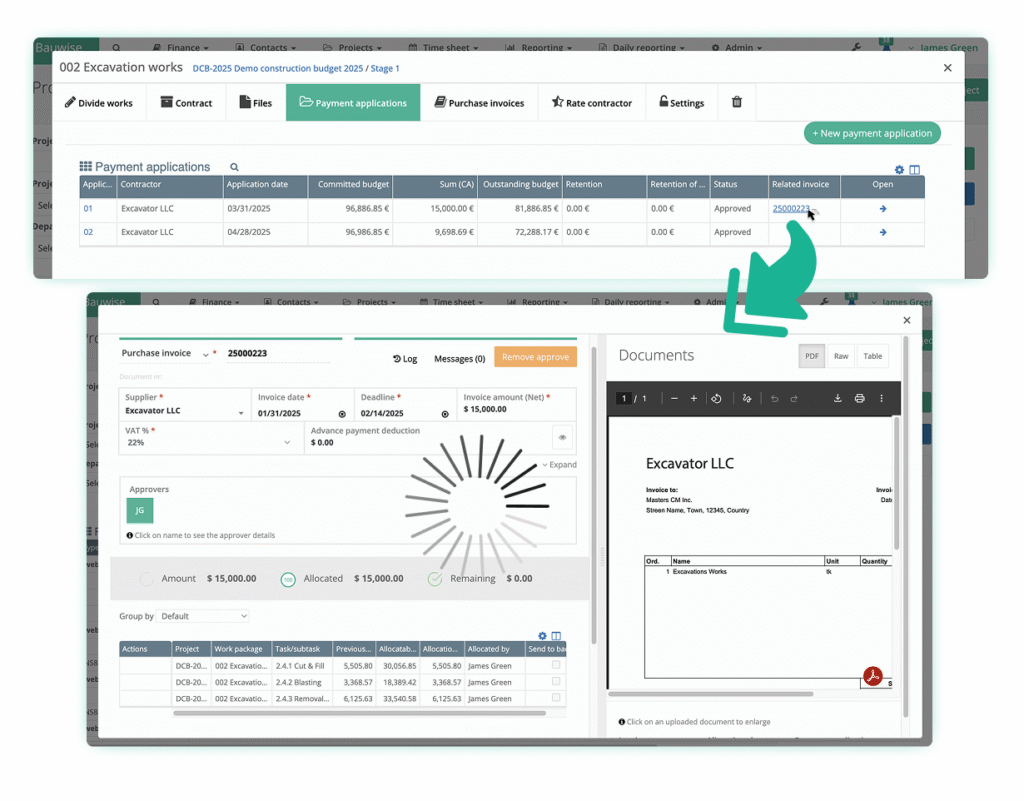
Client Payment Application Feature — Benefits for Construction Contractors
1. Improved Efficiency
The streamlined process reduces administrative burdens, eliminating the need for manual paperwork and ensuring that payment applications move swiftly through the approval stages. Contractors can save valuable time and resources, allowing them to focus on other critical aspects of the project.
2. Enhanced Transparency
The Client Payment Application feature provides a clear overview of the payment process, enabling contractors to monitor the progress of payment applications at every stage. By involving all relevant parties and obtaining their approvals, transparency is increased, fostering trust and minimizing potential disputes.
3. Flexibility and Collaboration
Bauwise’s Client Payment Application feature offers flexibility in terms of adding and modifying contract parties, allowing for customization based on project requirements. The ability to edit payment applications and restart the approval process ensures that any changes or adjustments can be accommodated smoothly. Additionally, the collaborative nature of the feature encourages effective communication and coordination among project stakeholders, resulting in a more cohesive and efficient payment workflow.
4. Accurate Documentation
By digitizing the payment application process within Bauwise, contractors can maintain a comprehensive and accurate record of all payment-related activities. The system tracks each party’s approvals and signatures, providing an audit trail that can be accessed at any time. This documentation not only facilitates financial transparency but also serves as a valuable resource for future reference or potential dispute resolution.
5. Time and Cost Savings
The streamlined nature of the Client Payment Application feature reduces the time and effort required for payment processing. Contractors can avoid the delays and errors often associated with manual payment workflows, leading to significant time savings. Additionally, by automating the payment application process, contractors can minimize potential financial discrepancies and mitigate the risk of payment disputes, ultimately saving costs in the long run.
Bauwise’s new client payment application feature empowers construction teams with an efficient and collaborative approach to managing client payments. By integrating seamless payment workflows, construction projects can experience improved financial management, streamlined approval processes, and enhanced client satisfaction. With Bauwise’s client payment application, project managers and construction professionals can now navigate payment processes with ease, ensuring transparency, accuracy, and timely payments throughout the project lifecycle.
If you’re ready to streamline your payment processes and experience the benefits of Bauwise’s client payment application software, it’s time to leverage the power of modern construction management software. Upgrade your workflow today and take your construction projects to new heights of efficiency and success.
Learn more about Bauwise Applications for Payment capabilities.
Explore More of Bauwise Construction Cost Management Software Capabilities
| Automated Construction Budgeting & Forecasting | Allocate budget based on construction stages or buildings. Track Forecast to Complete (FTC) and Estimate at Completion (EAC). Control budgets through versions and approval locks. Forecast profitability, manage accruals, and sync financial data with integrated accounting or ERP software. |
| Construction Purchase Orders & Contracts Management | Automate commitments — create purchase orders (PO) and subcontractor contracts directly from budget lines. Manage scope changes, variations, and back charges from Applications for Payment (AfP) in real time. Track actuals, advances, and accruals at every stage. Allocate contingency reserves, forecast accurately, and centralize all vendor data for better procurement decisions. |
| Construction Cash Flow Forecasting | Get a structured, automated framework to plan, forecast, and monitor construction cash flow across all project stages. Generate cash flow forecasting baselines with one click, fill past periods with actual cost and revenue data, and align projections with the project’s Cost-at-Completion (CAC). Refine future forecasts, adjust monthly distributions, and manage approvals through version-controlled tracking. |
| ERP & Accounting Software Integration | Automate data flow between your ERP or accounting software and Bauwise. When integrated, construction-related invoices flow directly into Bauwise for approval and return to the ERP or accounting software enriched with data — cost allocations, budget lines, and approver info — no double work required. |
| Construction Change Order Management | Track, review, and approve construction project scope changes. Submit change order requests with attachments, automatically calculate their impact on project cost, and adjust budgets upon approval. Maintain versioned audit trails and status tracking to ensure compliance, transparency, and project continuity. |
| Construction Purchase Invoice Management | Automate purchase invoice processing with AI-powered data extraction, pre-defined approval workflows and unique invoice allocations. Link invoices directly to purchase orders (PO), contracts or Applications for Payments (AfPs). Manage consolidated invoices for multiple projects between different teams. Meet governance standards, and comply with internal financial policies. |
Bauwise Mobile App
Review and approve construction invoices directly from your mobile device. Capture receipts and invoices — the Bauwise Mobile App uses AI-powered image recognition to extract data from images. Allocate receipts and invoices using Bauwise Purchase Invoice Management module.
Available on App Store and Google Play.
About the Author
Originally written by Bret-Gregor Maidre. Updated and maintained by the Bauwise Editorial Team.